| Multiplayer Support: Multiplay may cause extreme framerate drops during loading of aircraft models. Especially heavy models can cause severe lag. Therefore, it is suggested to fly in locations other than KSFO, where there are fewer pilots flying around.
ServersPlease Note: The multiplayer servers are interconnected; you do not need to connect to a specific server in order to see other pilots who are on that server. For best performance, you should connect to the server that is geographically closest to you, has the lowest latency (ping time) or is the least busy.
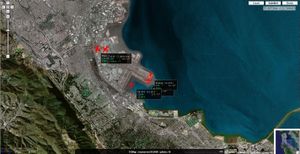
MPMap screenshot
Multiplayer MapThere is a very nice online map which displays the location of online pilots. You will also find this useful to check that you are successfully connecting to the server. Multiple connections per computerIt is possible to run multiple ProFlight instances on a single computer and connect them all to the multiplayer network. However, this requires some extras to keep in mind:
Using the Windows launcher / fgrun
Multiplayer options in Launcher
Using fgfs from the command lineFirst, for those who are very impatient and have a vague idea about what they're doing, the basic arguments to pass to fgfs for multiplayer are these; --multiplay=out,10,server.ip.address,5000
--callsign=anything
where 5000 is the port number the server is listening on (which is 5000 for the official servers). If you for some reason need to specify which local port and/or interface ProFlight should use add the following argument: --multiplay=in,10,your.ip.address,portnumber
where portnumber is usually 5000 and your.ip.address is the ip address of the network interface being used by FG to connect to the server - even if that's a local 192.168 type address. You can also leave your.ip.address blank. ProFlight will then listen on all network interfaces: --multiplay=in,10,,5000
Now, going more slowly for those who are completely lost...Try the above first, and if it doesn't work, read on. First of all, you need to know the IP address of the network interface you'll be using for multiplayer FG. If your Internet connection is via an ADSL modem that plugs directly into your computer with a USB connection, you should be able to find your IP address by visiting http://www.whatismyip.com . Please note that your ISP might not give you the same IP address each time - if MP stops working, check this first. Otherwise, your connection is likely via some kind of router that connects to your computer via an RJ-45, or "Ethernet" connector (similar shape to most Western telephone plugs), or by a wireless link. You need to find the IP address of that network interface.
This section _ought_ to be unnecessary now with recent versions of the FG server. If you have problems though, it won't hurt to follow through. Now, all (!) that remains is to configure your router to forward UDP port 5000 to the IP address you've just found. This is not something that can be described in step-by-step detail, because each manufacturer's configuration interfaces differ greatly. You should know how to log on to your router's configuration page, usually via a web browser. You are looking for settings pertaining to "port forwarding" "virtual server" "Forwarding Rules" or similar. When you have found the relevant settings, you need to add a rule that forwards port 5000 to the IP address you discovered earlier. If there is a choice given, ensure it is UDP ports that are forwarded. If there is no choice, you may assume that both TCP and UDP are being forwarded. Save your configuration, and most routers will probably then need to be rebooted to apply the changes. Note: (for BSD users) If you are using a ADSL modem, you might have to put the port forward command into the ppp.conf file rather than firewall. This is because the firewall script will only run each time the machine is booted rather than the ppp line coming back online. Finally, start using the command line given right at the start (if you're using the windows launcher you will find entry boxes for Multiplayer arguments - insert the relevant details there). You will end up with something like this; fgfs --callsign=MyName Choose your own callsign - this is currently limited to seven characters. Once you have start, you should, if others are flying, see messages in the terminal from which FG was started, similar to the following; Initialising john51a using 'Aircraft/ufo/Models/ufo.xml'
FGMultiplayRxMgr::ProcessRxData - Add new player. IP: 10.0.0.36,
Call: john51a,model: Aircraft/ufo/Models/ufo.xml
You MUST give your local, behind-the-router IP address for MultiPlayer to work. Trust me on this one! You should check that your firewall is not causing problems - either turn it off _temporarily_ or add an exception to allow incoming connections on port 5000. Multiplayer ChatTo chat with other pilots, go to the "Network" menu and select "Chat" or "Chat Menu" at the bottom of the menu. Note that the other pilots may not have their chat box open nor chat messages enabled, so they may not see your messages. The shortcut for chatting is "_" (underscore) and it brings up a small window where you can type. By default, other people's messages are displayed at the top of ProFlight's window for a few seconds, but it will appear for a much longer time in the window at Network > Chat. So if you think you have missed anything, go check there. Coping with abusive behaviourShould you become victim of abusive or annoying behaviour by any pilot you have option to ignore him or her. To activate the ignore function open the Network->"Pilot list" dialog and click the ignore button next to the pilot's call sign. |